
How to Stamp a Photo With the Place and Date
You took a photo at a place worth remembering, and a week later you can’t tell which lookout or which trailhead it was. A stamp puts the answer on the picture itself.
Written by Pin Location Team5 min readUpdated
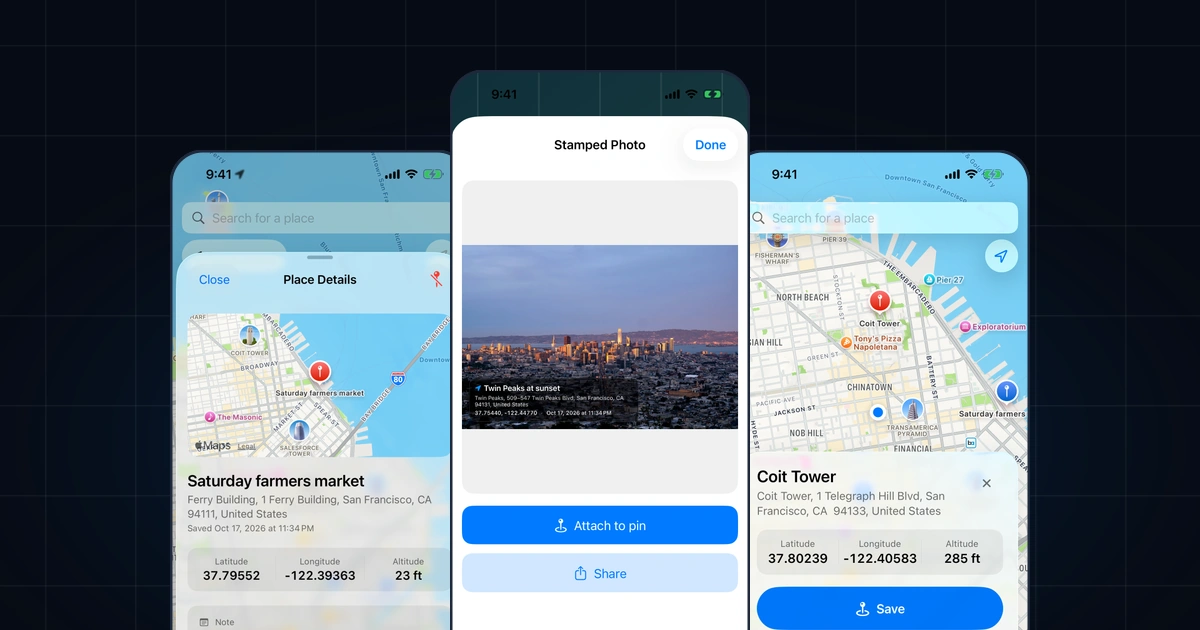
Stamp a Photo prints a banner across a photo with the place name, its address, the coordinates and the date. You can stamp a new photo from the Camera tab or one you already took, pick the place from where you are or from your saved places, and attach the result to a pin so the place carries the picture.
Here’s how each step works, and what the stamp does and doesn’t say.
Open the Camera tab, take a photo or choose one from your library, check the place and date, tap Stamp photo, then tap Attach to pin.
Open the Camera Tab
Tap Camera, the second tab at the bottom of the screen. The first time, iPhone asks for camera access; if you turned it off, the tab says Camera access is off, with a button to open Settings.
The live preview already shows the banner the photo will get, so you can see the place and date before you take the picture. The stamp uses your current location until you change it.
Take a Photo or Choose One From Your Library
Tap Take photo to shoot with the in-app camera, and Switch camera to use the front one. The photo is stamped right away with the date it was taken.
To stamp a photo you already have, tap Choose a photo and pick it from your library. It opens on the Stamp a Photo screen, where you can check everything before stamping.
Pick the Place on the Stamp
The button at the top of the preview shows the stamp’s place: Current location, or the name of a saved place. Tap it to open Stamp location.
Choose Current location to stamp where you are standing, or pick one of your Saved places. Picking a saved place is how you stamp an older photo with the spot where you took it, or a photo of a place you pinned earlier with your own name for it.
Choose the Date
When a photo from your library carries its own date, the Stamp a Photo screen offers Date: Now or Photo’s date. Photo’s date is selected first, so an older picture keeps the day it was taken.
A photo without a date of its own is stamped with the current date and time, and a photo you take in the Camera tab always uses the moment you took it.
Stamp the Photo
Tap Stamp photo. After a moment (Stamping your photo…) the Stamped Photo screen shows the result: the photo with the banner printed across the bottom, carrying the place name, the address, the latitude and longitude, and the date.
The saved file also records the place in its photo metadata, the same location data a camera writes, so apps that read it can place the photo on a map.
Attach It to a Pin
Tap Attach to pin to keep the photo with the place; tapping Done without attaching discards the stamped copy. If you stamped a saved place, the photo goes on that pin; if you stamped your current location, Pin Location saves a new place there and attaches the photo to it.
Each place holds one photo. If the place already has one, Pin Location asks before replacing it. You’ll find the photo in Place Details, and Saved Places can filter to places With Photo.
Frequently Asked Questions
Can I stamp a photo I already took?
Yes. In the Camera tab, tap Choose a photo and pick it from your library. On the Stamp a Photo screen you can set the place to a saved place and keep the photo’s own date, so an older picture gets the place and day it was actually taken, then tap Stamp photo.
Does stamping change my original photo?
No. Pin Location makes a new stamped copy and leaves the photo in your library as it was. The copy is kept when you tap Attach to pin; tap Done without attaching and it’s discarded. It leaves the app only when you share it, which needs Pin Location Premium.
Is stamping photos free?
Yes. Taking or choosing a photo, stamping it with the place and date, and attaching it to a saved place are free and unlimited, with no account. Pin Location Premium is a subscription that adds sharing: sending a stamped photo, or a place’s name, coordinates and map link, to any app.
What if the stamp shows the wrong place?
Tap the place button at the top of the preview and choose another one under Stamp location before you stamp. If the current location looks off, wait a few seconds outdoors for a better fix, or pin the spot on the map first and pick that saved place instead.
Pin it, name it, find it again
Download Pin Location, drop a pin anywhere, and keep your own name and note on every place you save.