Where Did I Park? How to Find Your Car on iPhone
You walked out of the store, the lot is full, and every row looks the same. Where did I park? Your iPhone may already know, and if it doesn’t, ten seconds before you walk away fixes it next time.
Written by Pin Location Team8 min readUpdated
Apple Maps can mark your car on its own, but only when your iPhone was connected to the car through CarPlay or Bluetooth, and not when you park at home or work. Everyone else, and everyone in a rental, needs to mark the spot by hand.
That takes a pin and a short note, in Apple Maps or Google Maps, both free. Here’s how each one works, what to write in a big garage, and what to do when the pin and the car don’t match.
Where did I park? If your iPhone connects to the car by CarPlay or Bluetooth, open Apple Maps and tap Parked Car. If it doesn’t, touch and hold the Maps icon and choose Mark My Location before you walk away, then add a note with the level and row.
How Apple Maps Finds Your Parked Car
Apple Maps drops a Parked Car marker when your iPhone disconnects from your car’s CarPlay or Bluetooth system and you get out of the car. You don’t do anything: the marker is just there the next time you open Maps.
To find it, open Maps and tap Parked Car below Siri Suggestions, then tap Directions for the walk back. Apple says you can also choose Parked Car from the search results to edit its location or add notes, which is the moment to type the level and row.
Apple lists a few conditions: Bluetooth turned on, an iPhone 6 or later, and the car paired over CarPlay or Bluetooth. When you’re done with the marker, touch and hold it and tap Remove Car.
Parked Car Not Showing? Check These Settings
If Parked Car never appears, one of three settings is usually off. Check them in this order:
- Settings, Privacy & Security, Location Services: on.
- Location Services, System Services, Significant Locations: on.
- Settings, Apps, Maps, Show Parked Location: on.
Two cases have no fix. Maps doesn’t mark the car at a familiar location such as your home or work, so the driveway and the office lot stay unmarked by design. And a car with no Bluetooth or CarPlay, which covers many older cars and most rentals until you pair them, never triggers the marker at all. For both, mark the spot yourself.
How to Mark Where You Parked Without CarPlay
Apple Maps can pin any spot by hand, and it takes about ten seconds. Do it before you walk away, while you’re still next to the car.
Pin the spot.
Touch and hold the Maps icon on the Home Screen and choose Mark My Location. Inside Maps, touch and hold the map until a pin appears, tap Move to drag it onto the car, then tap Pin.
Add a note.
On the place card, open its menu, tap Add a Note, and type what you’ll need: “Level 3, row G, near the north elevator.” Adding a note saves the place to your Places, so it stays after you close Maps.
Walk back.
Open Places, tap the pin, and tap Directions. Delete it from Places once you’re back in the car, or the old spots pile up.
Maps shows only one dropped pin at a time unless you save it, so the note matters for more than the reminder: it’s what keeps the pin.
How to Save Parking in Google Maps on iPhone
Google Maps has a parking spot of its own, and it works without any car connection. Open Google Maps, tap the blue dot that shows your location, then tap Saved parking. The map shows a pin labeled “You parked here.”
Google says the spot stays saved for 48 hours unless you remove it or start driving. Under Saved parking you can tap Change location if the dot landed on the wrong row, or Share to send the spot to someone meeting you at the car. Tap Directions to walk back.
What to Write Down in a Parking Garage
A pin gets you to the right building; the note gets you to the right car. In a garage, the pin can’t tell level 1 from level 4, so the level has to be in words.
Write the level and the row. “P3, row G” is the whole job in most garages. Use the garage’s own labels, colors or animal names exactly as they’re painted on the pillar, because that’s what you’ll be looking for.
Name the way out. Note the elevator, stairwell or exit you walk through: “north elevator, Geary St side.” Garages often have two or three, and coming back through the wrong one is how a five-minute walk turns into twenty.
Take a photo of the sign. A photo of the pillar sign next to the car takes two seconds and answers every question the note forgot, including which side of the pillar you parked on.
Pin at the entrance if you’re underground. Underground, your iPhone often can’t get a good location fix. Move the pin to the garage entrance on the map, and let the note carry the level and row.
The honest gap: Apple Maps already handles the pin and the note well, and Google Maps adds a 48-hour parking spot. What neither keeps is a private photo of the sign on the pin itself; photos you add to a place in Apple Maps are contributions shared publicly, not notes to yourself. That’s the part Pin Location adds, below.
What If the Pin and Your Car Don’t Match?
A phone’s location is close, not exact. GPS.gov says GPS-enabled smartphones are typically accurate to within 4.9 meters (16 feet) under open sky, and that accuracy gets worse near buildings, bridges and trees, and with indoor or underground use. In a dense lot that’s two or three rows; in a garage it can be much more.
So when the pin lands you in the wrong row, trust the note over the dot: walk to the level and row you wrote down, then look around within a few cars. If there’s no note, check the pin’s spot against the map at a zoom where you can see the lot’s edges, and start from the closest entrance.
Next time, pin the car while you’re still standing next to it. A pin dropped from the store entrance, five minutes later, is off by the whole walk.
How Pin Location Helps You Find Your Car
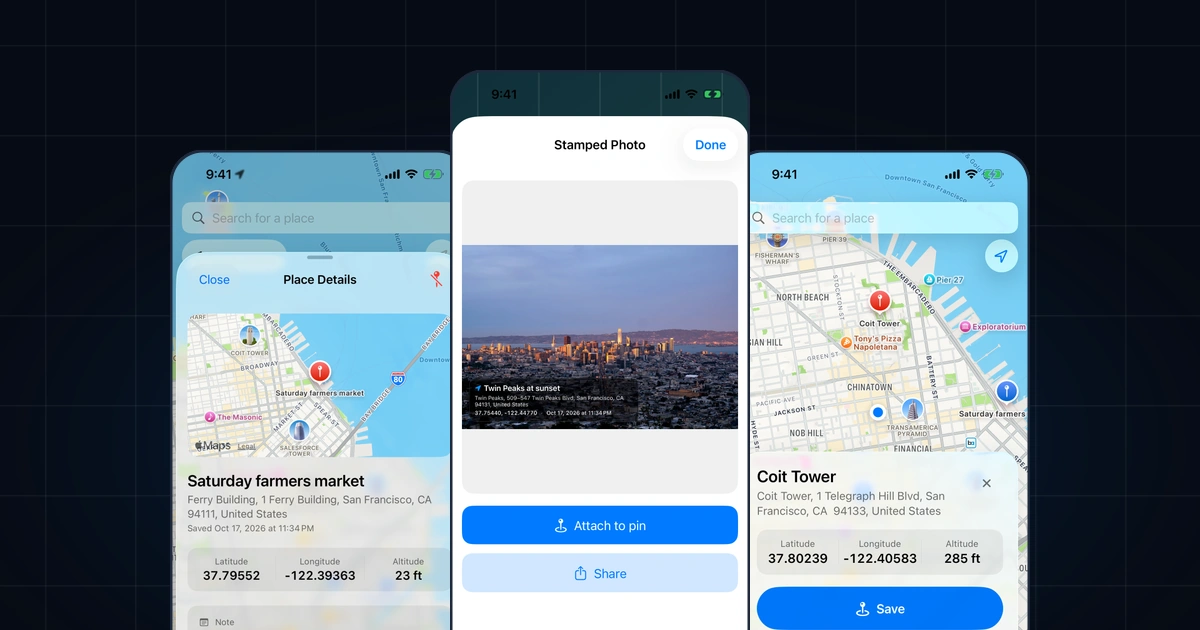
Pin Location does the manual version with everything on one card. Tap Pin my location next to the car, tap Save, and give the place the name you’ll look for, like “Car, level B3,” with a note about the row and the elevator. The card shows the address and the latitude and longitude, so the spot is there even when the garage has no listing.
For the pillar sign, open the Camera tab, choose your saved car under Stamp location, take the photo and tap Attach to pin. The photo stays on the place, private on your iPhone, with the place and date printed on it. When you’re ready to walk back, tap Directions and pick Apple Maps, Google Maps, Waze or another map app you have installed.
Pin Location doesn’t notice that you parked, so you still have to tap the button, and underground the same location limits apply. Saving places, notes, photos and directions are free and unlimited with no account; sending a place to someone else comes with Pin Location Premium. It runs on iPhone only.
Frequently Asked Questions
How does my iPhone know where my car is parked?
Apple Maps drops a Parked Car marker when your iPhone disconnects from your car’s CarPlay or Bluetooth system and you get out. It needs Location Services, Significant Locations and Show Parked Location turned on, and it doesn’t mark the car at familiar places such as home or work. Without a car connection, your iPhone doesn’t know, so mark the spot yourself.
Can I find my car if I didn’t mark where I parked?
Only if your iPhone connected to the car by CarPlay or Bluetooth: then open Apple Maps and look for Parked Car below Siri Suggestions. If it didn’t, nothing on the iPhone recorded the spot. Retrace your route from the entrance you used, and walk the rows level by level in a garage.
Does Find My show where my car is?
Not by itself. Find My locates your Apple devices and AirTags, not the car. If you leave an AirTag in the car, Find My shows the AirTag’s last known location, which works for a parked car too. For a quick parking spot, a pin in Maps with a note is simpler and needs no extra hardware.
How long does Google Maps keep my parking spot?
Google says a saved parking location stays for 48 hours unless you remove it or start driving. That covers a day at the airport lot but not a week, so for a long trip save a pin in your places instead, with a note about the level, row and shuttle stop.
What if Parked Car shows an old spot?
Maps updates the marker when your iPhone disconnects from the car, so a drive without a connection can leave the old spot in place. Touch and hold the marker and tap Remove Car to clear it, then check that Bluetooth is on and the car is paired before the next drive.
Sources and further reading
These links are for further reading.
- Get directions to your parked car in Maps on iPhone (Apple Support)
- Use Maps on your iPhone to find your parked car’s location (Apple Support)
- Mark a location with a pin in Maps on iPhone (Apple Support)
- Find & save parking locations (iPhone & iPad) (Google Maps Help)
- GPS Accuracy (GPS.gov)
Pin it, name it, find it again
Download Pin Location, drop a pin anywhere, and keep your own name and note on every place you save.